
Learning Phoenix with Catalina
Everyone Starts Somewhere follows Catalina in the process of learning Phoenix Restoration & Color from the ground up. With a background in film preservation and digitisation, she’s documenting the real-world challenges, discoveries and milestones of becoming a digital restoration artist. Whether you’re just starting out or refining your skills, we hope her experiences inspire you to begin (or continue) your own journey.
Download the free Phoenix trial today to get hands-on experience with the same professional tools used by archives, post-production facilities and restoration specialists around the world.
Catalina’s articles will hopefully give you a head-start – you can also Ask Juno for guidance on using Phoenix – Juno’s always there for 24/7 global support, any language, any time!
And you can follow Catalina in Pocket Films, alongside a host of global Providers who make films happen.
Phoenix Restoration – Scratches
Hi there! Today I want to tell you about my first approach to removing — or softening — scratches.
Before that, a quick note on workflow: I realised that having a lot of video tracks can be quite demanding on your workstation. Since I was already happy with the result of everything done so far (DVO Dry Clean, Spanish Dry Clean, DVO Fix and DVO Frame — check the previous entries for all the tools and passes I used), I exported it and imported it into a new project, so it would run better on my workstation. This also let me work by generations.
One thing to keep in mind: with every new project, you have to do scene detection again. But I didn’t find it complicated at all.
DVO Scratch Target
For scratches, I used DVO Scratch Target. I left V1 empty, only with the film imported. Then I created V2 and V3, in order to attack white and black scratches separately. The tool’s guide warns against using Positive+Negative as a default setting, since it can end up processing too much of the picture — so separating white and black scratches into their own passes felt like the safer approach.
I changed the Scratch Width to Wide, which caught a lot more scratches, and set the processing Colour Mode to YUV, since this works best for monochrome footage. I left the detection Colour Mode as Y (luminance only), which is also the better fit for black-and-white material. I also raised the Column Aggressiveness, which controls which columns get selected as scratch candidates — so raising it made the tool catch more of them.


As I’ve been doing before, I saved these settings in Notes in order to use them in the rest of the clips.
I think it did a really good job removing the continuous black scratch on the right side.
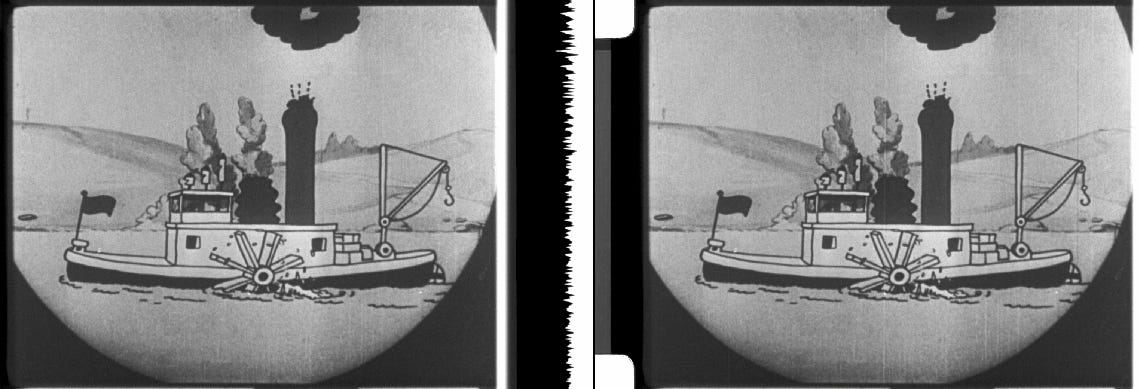
The longer and straighter the scratches are, the better it detects them.
Here’s another example, where the results were more mixed. Some of the scratches weren’t detected across the whole shot — in those cases, they were either just softened or left untouched.
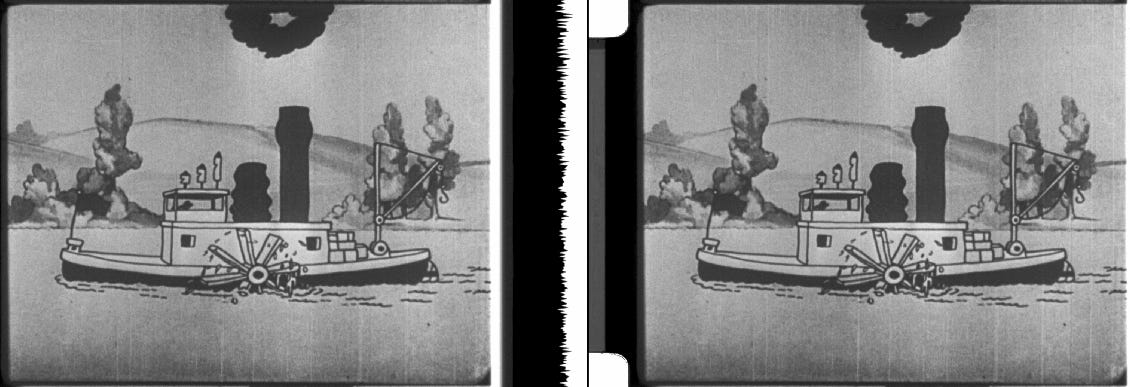
This was just a first pass to remove the most obvious scratches. I’m still digging into this tool, and next I need to look into how to fine-tune scratch removal further when needed.
That’s it for this now. See you in the next one,
C.