
Learning Phoenix with Catalina
Everyone Starts Somewhere follows Catalina in the process of learning Phoenix Restoration & Color from the ground up. With a background in film preservation and digitisation, she’s documenting the real-world challenges, discoveries and milestones of becoming a digital restoration artist. Whether you’re just starting out or refining your skills, we hope her experiences inspire you to begin (or continue) your own journey.
Download the free Phoenix trial today to get hands-on experience with the same professional tools used by archives, post-production facilities and restoration specialists around the world.
Catalina’s articles will hopefully give you a head-start – you can also Ask Juno for guidance on using Phoenix – Juno’s always there for 24/7 global support, any language, any time!
And you can follow Catalina in Pocket Films, alongside a host of global Providers who make films happen.
Phoenix Restoration – Cleaning part 2
Hi there! Today I want to share the next step in my cleaning process. In the last post, I told you about the first light pass of DVO Dry Clean I did to remove dust, tiny dirt, blemishes, and other visible imperfections that are constant and distracting to watch. I also saved this setup as a preset in Notes (you can see how to save and apply presets as Notes in my Stabilisation post). After that, I checked the results shot by shot to make sure I hadn’t accidentally removed anything that wasn’t actually dirt.
Manual Cleaning
Once I finished this first cleaning pass, I moved on to manual cleaning, which also involves a few different steps and tools. For this second pass, I already had some markers from before — ones I’d created while doing the automatic pass, flagging bigger or more difficult dirt that DVO Dry Clean hadn’t fully resolved.
To start, I created a new video track — V3 — and added a new adjustment layer to it. In this layer, I applied DVO Dry Clean, following the Spanish Dry Clean technique developed by Fabio Bedoya, who kindly shared it on his YouTube channel. I’ll go into more detail on how it works below, and I’ll leave his tutorial at the end of the post.
Alongside this, I also added DVO Fix to the same layer, for certain kinds of damage that Spanish Dry Clean didn’t handle as well. My Phoenix mentor suggested combining manual cleaning tools within the same layer, which made a lot of sense to me — this way, I could switch to the other tool if one wasn’t working on a particular spot. To apply them together whenever needed, I saved this combination — Spanish Dry Clean + DVO Fix — as a preset in a Note.
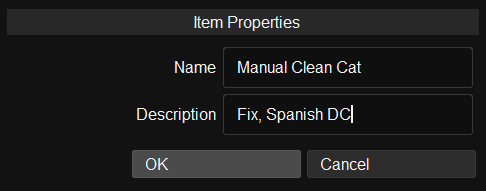
It’s important to notice that DVO Fix only activates once an area to fix has been selected, using the Brush or Rectangle tool. So in this case, both tools stay latent, since Spanish Dry Clean is in inverted mode too: neither one is rendering constantly across the whole frame, only wherever I actually paint or select something to clean.
Spanish Dry Clean
As I said before, Spanish Dry Clean is the name of this inverted-matte restoration technique developed by Fabio. The key to this technique is pushing DVO Dry Clean’s Strength and Aggressiveness higher than you normally would — settings that would create a lot of artefacts if applied across the whole frame.
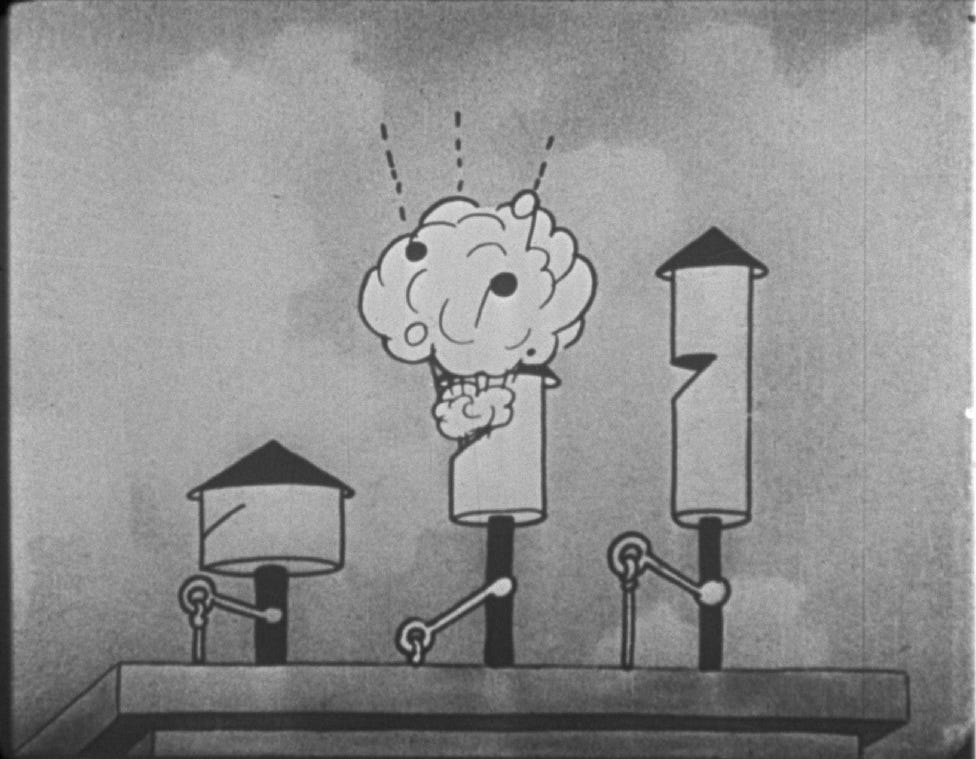
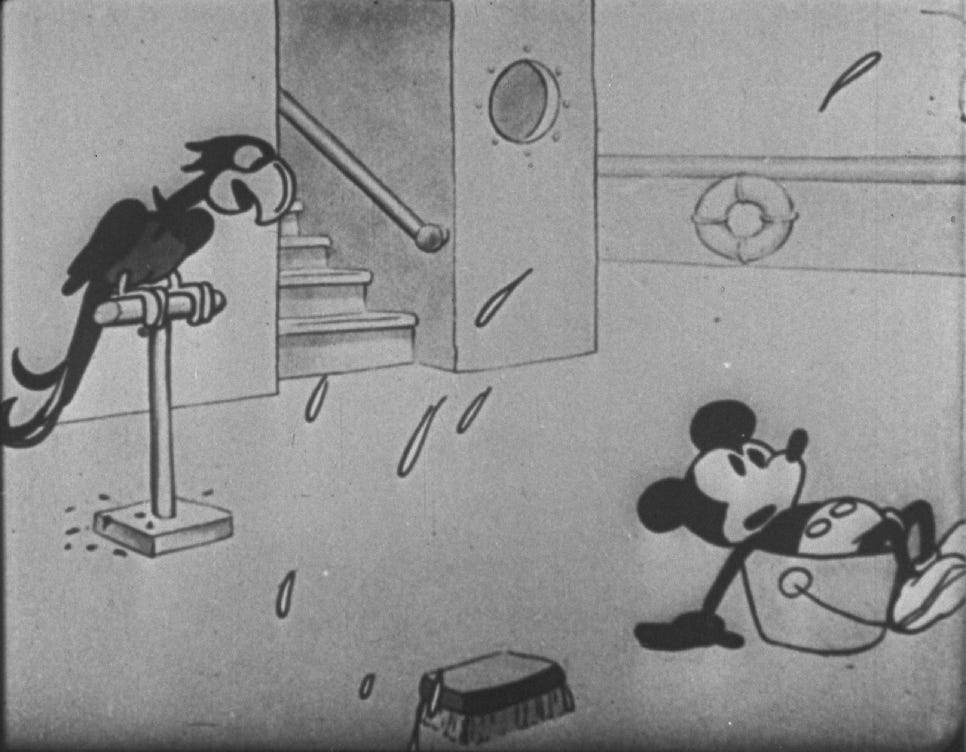
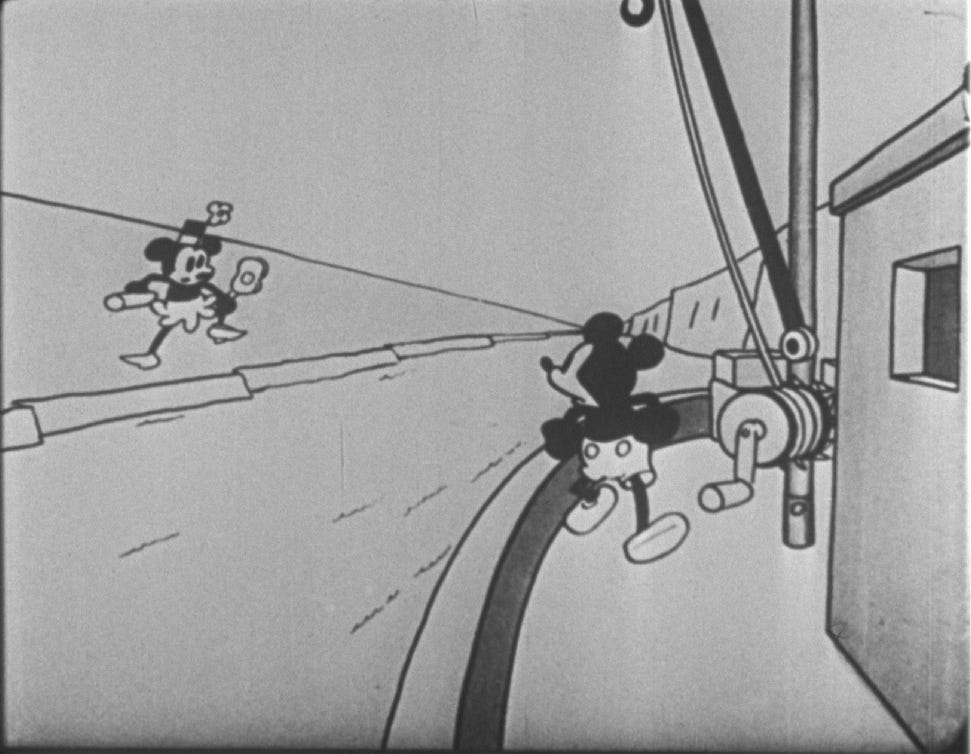
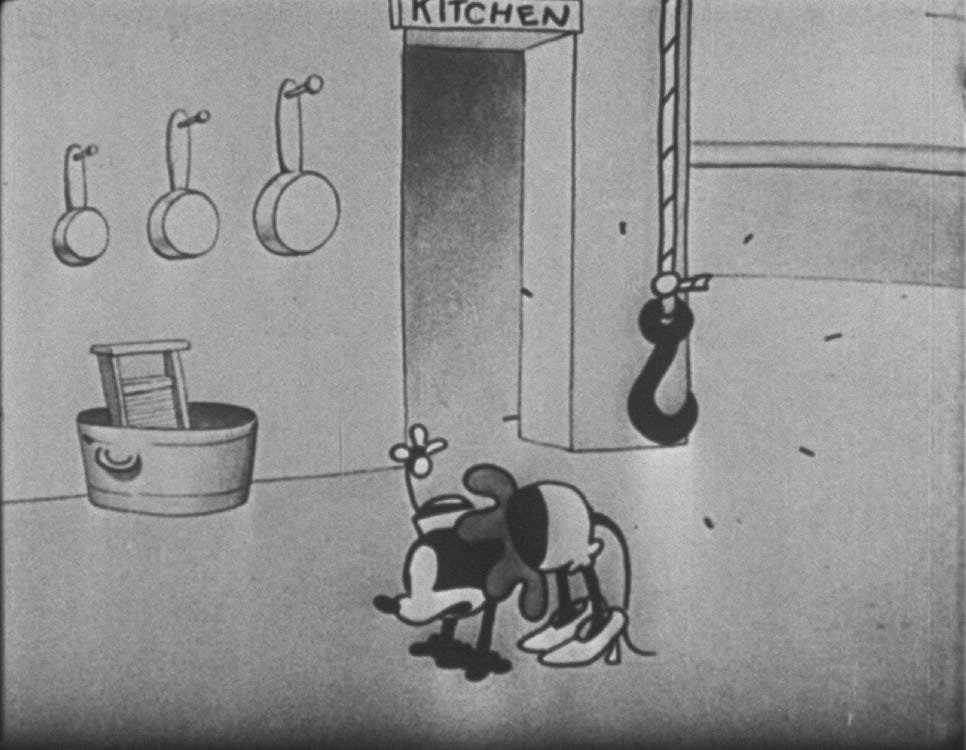
In this particular workflow, I found it especially useful for shots that were particularly difficult due to the number of moving objects in the image. For example, since the footage is an animation, it has a lot of effect lines coming out of the characters. Here are some examples:
- Look at the sound lines coming out of the smoke here.
- Or these drops.
- These lines on the floor that changed position between frames.
- These exclamation lines that appear all over the film.
- And here, music notes coming out of the goat’s mouth.
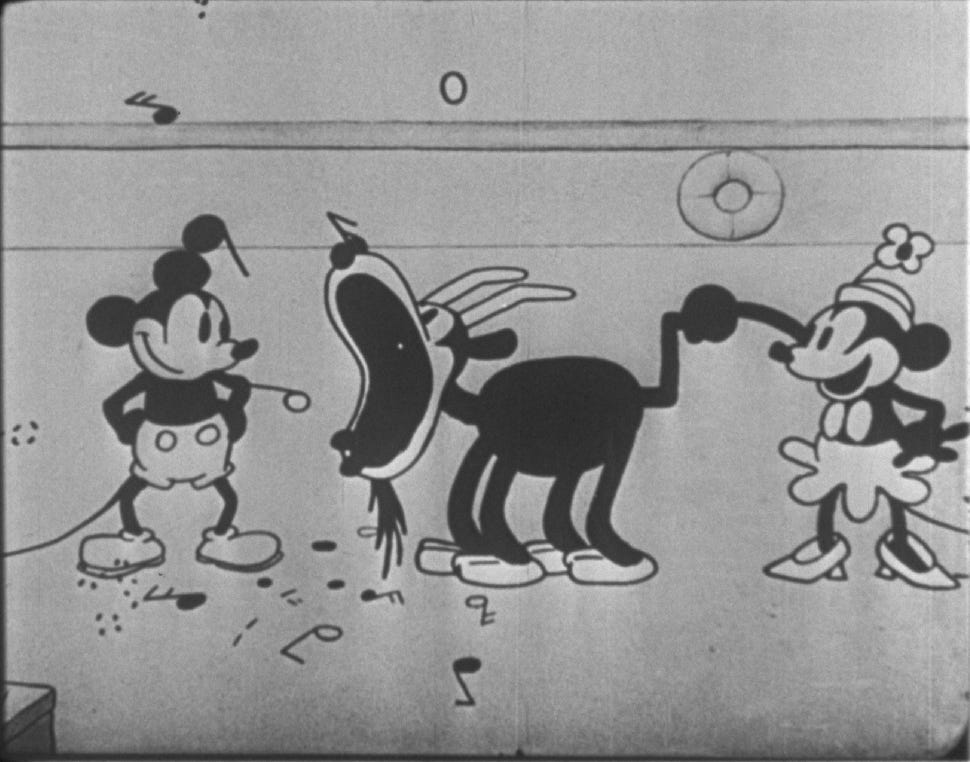
In all these cases, it was much easier to approach these shots directly with Spanish Dry Clean, because DVO Dry Clean would have created a huge amount of artefacts. This works thanks to the Matte Paint’s invert option, which deactivates the effect across the whole frame except where you actually paint. This way, I could apply those settings safely, only to the exact spot I wanted to clean, without touching anything else.
I also used Spanish Dry Clean to remove some bigger or more specific dirt that DVO Dry Clean hadn’t detected. Here are a few examples:
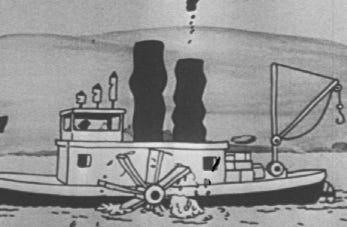
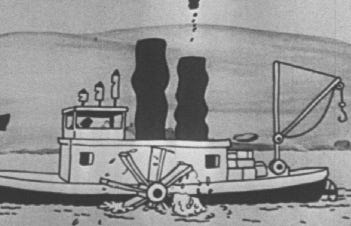
DVO Fix
This is in fact a manual cleaning tool, and like Spanish Dry Clean, it works using the Brush or Rectangle tool to select the area you want to repair. I used it mainly for bigger or more complex dirt, and also in cases where Spanish Dry Clean was removing too much grain — DVO Fix has a Grain setting that lets you preserve more of the film’s original texture.
Here are some examples of where I applied DVO Fix.
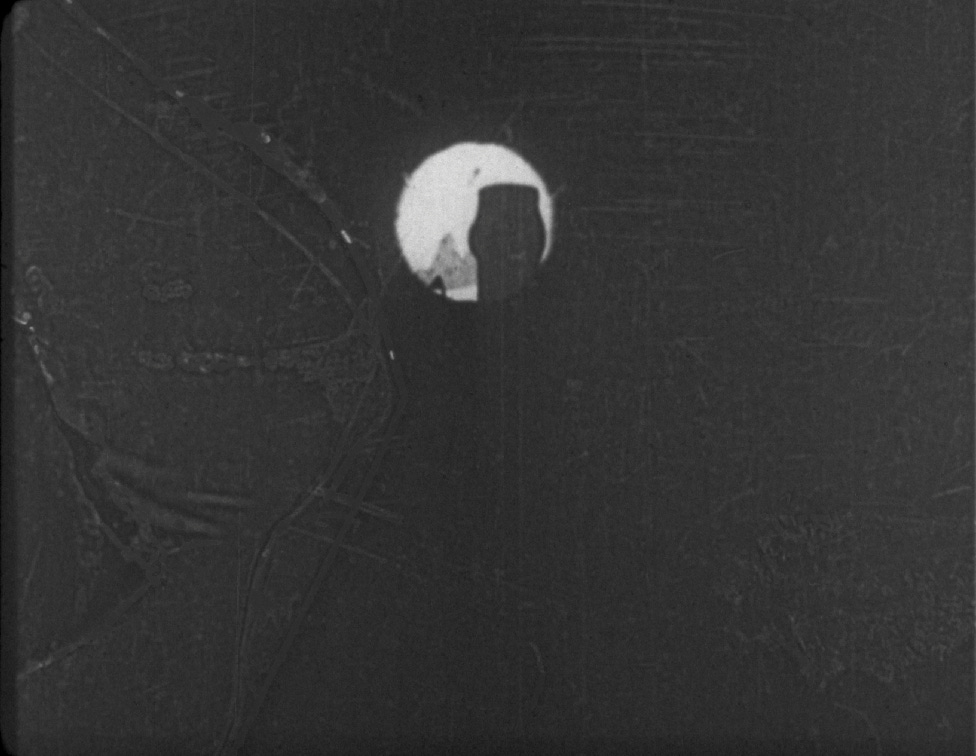
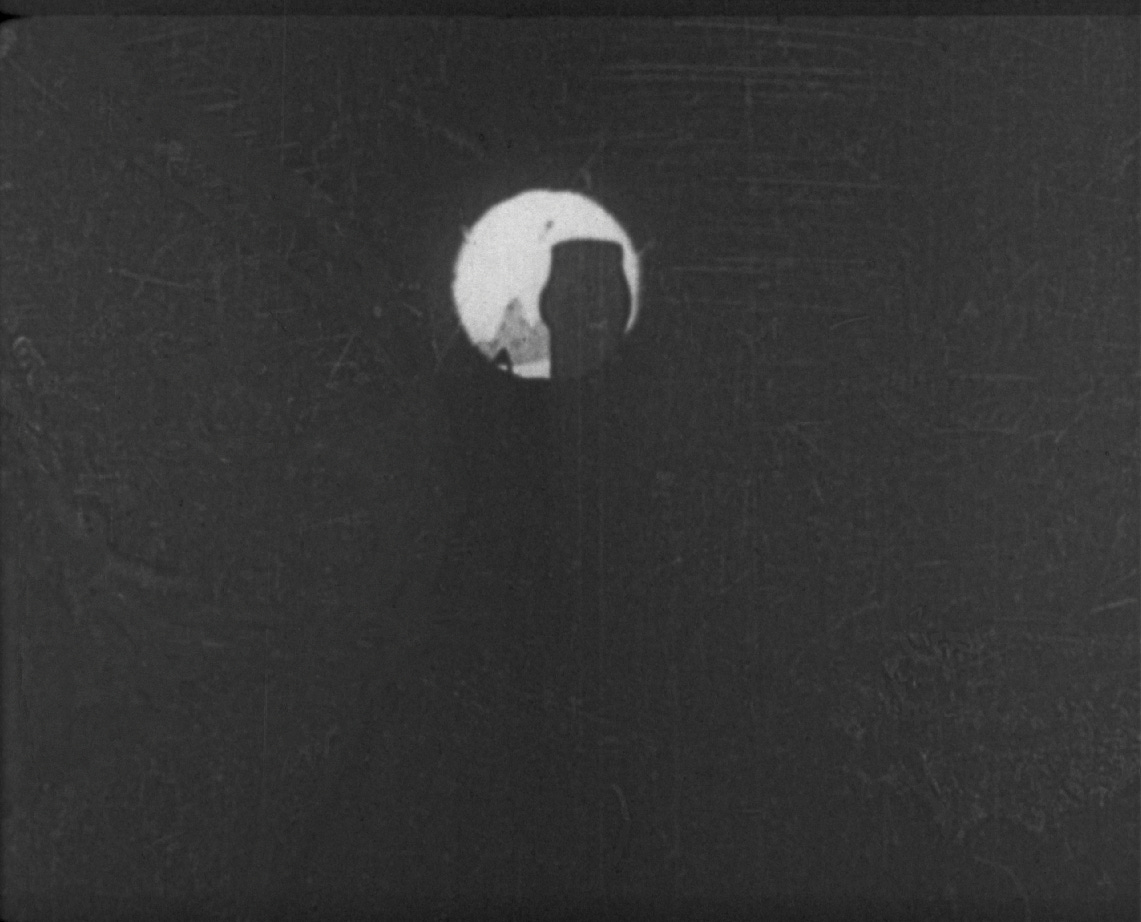
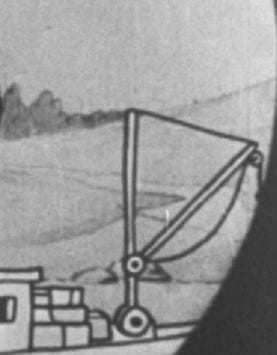
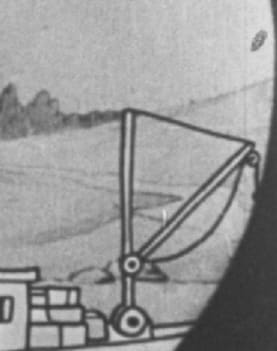
One thing I noticed while working with it is that you need to be careful with the Softness setting: it doesn’t just soften the borders of the selection, it also spreads the detected area. So I switched between Brush and Rect, and changed size and softness as I needed to.
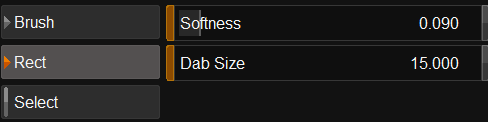
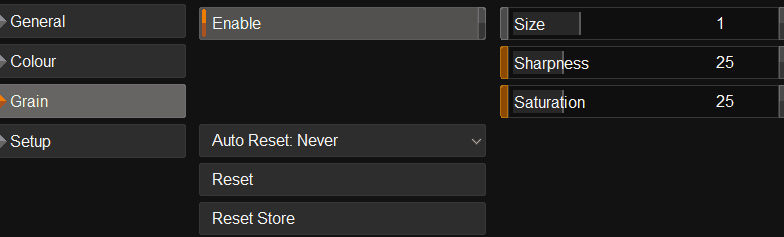
With DVO Fix, it’s also worth paying attention to the Grain settings. I lowered it to 25.
In this comparison, you can see the grain difference between the original, the area removed with Spanish Dry Clean, and the same area removed with DVO Fix:
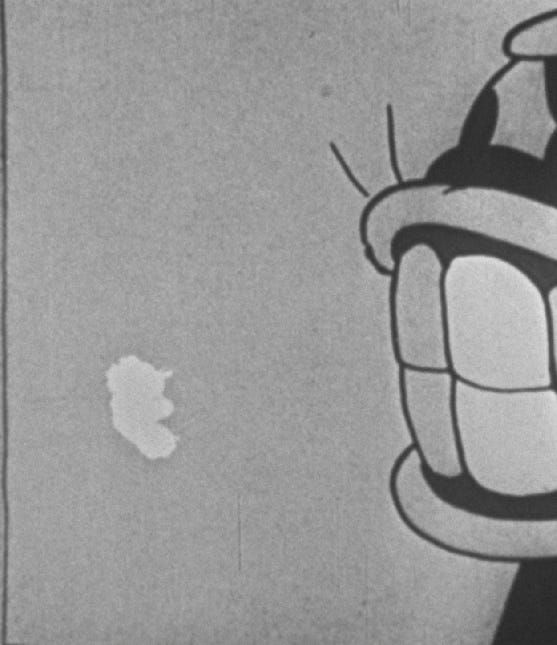
Original
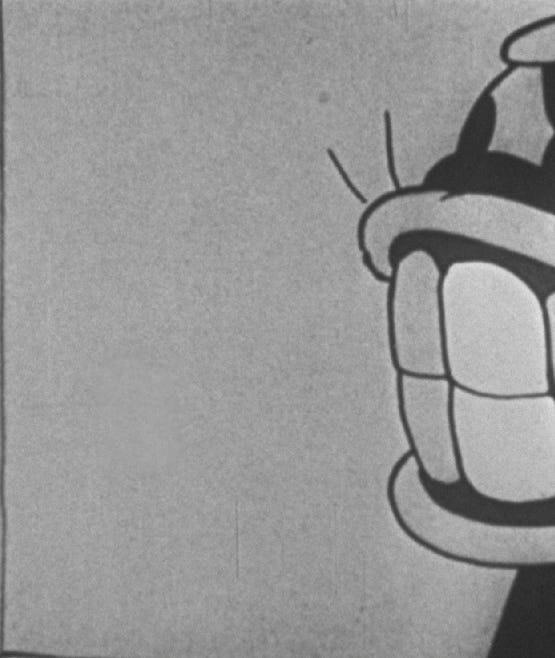
Removed with Spanish Dry Clean
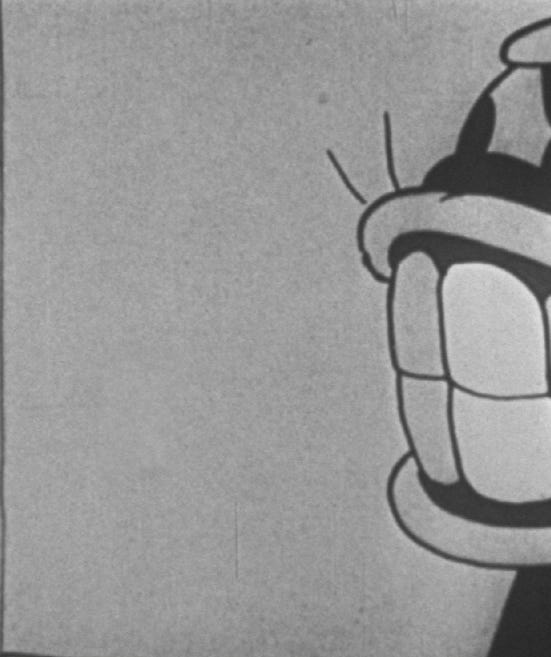
Removed with DVO Fix
My conclusion was that for bigger dirt, DVO Fix tends to work better, since it preserves the grain more naturally.
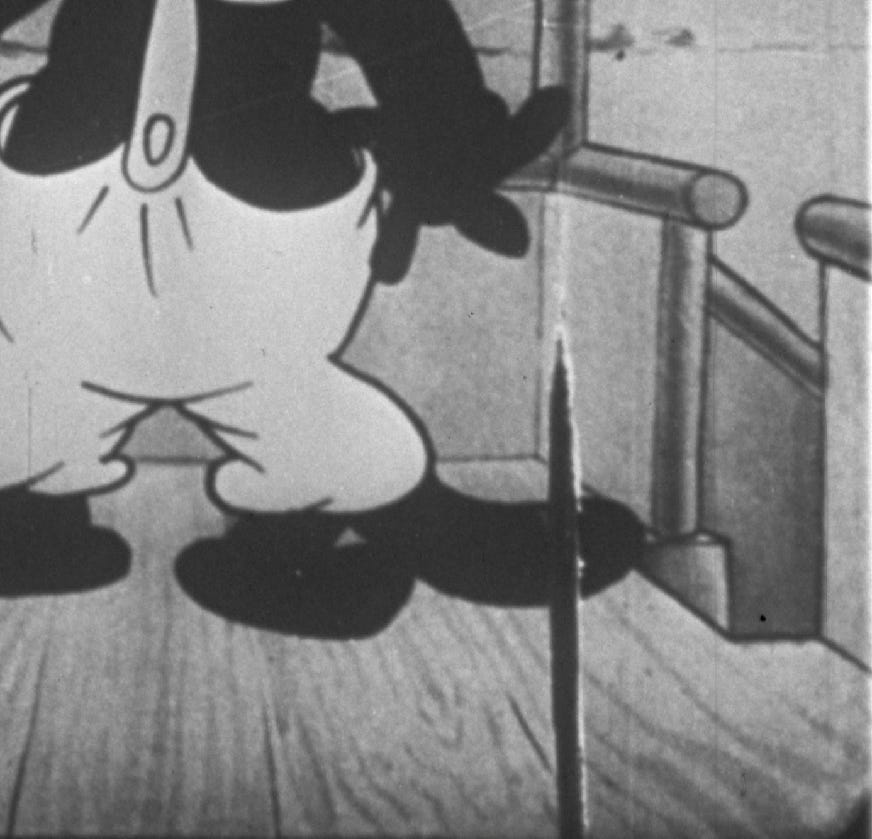
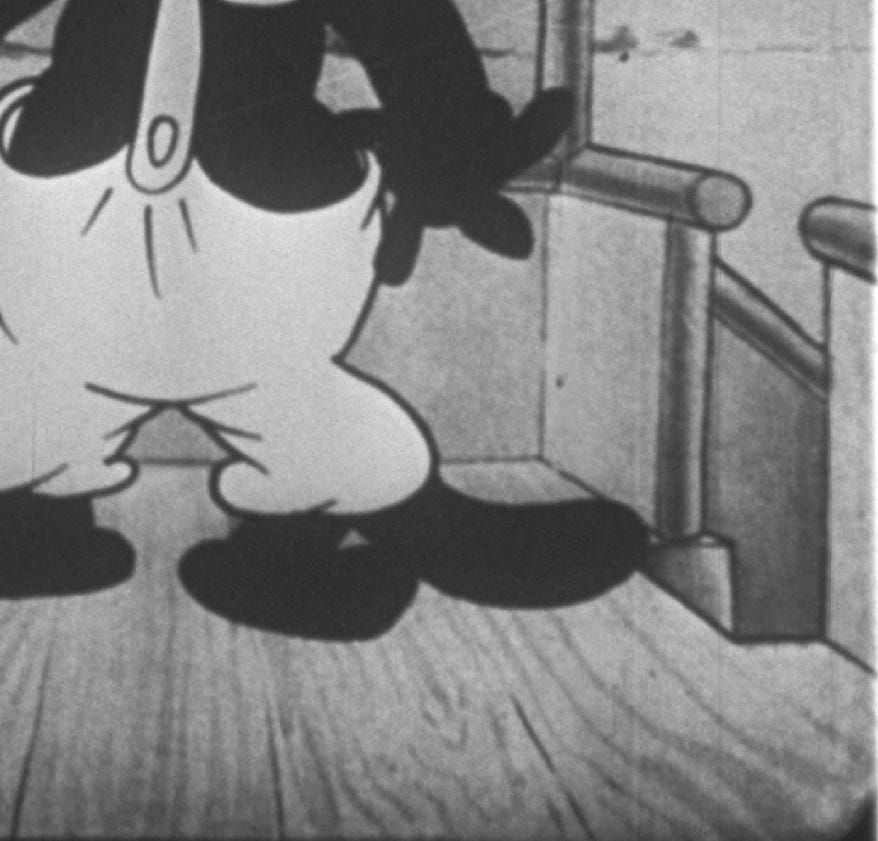
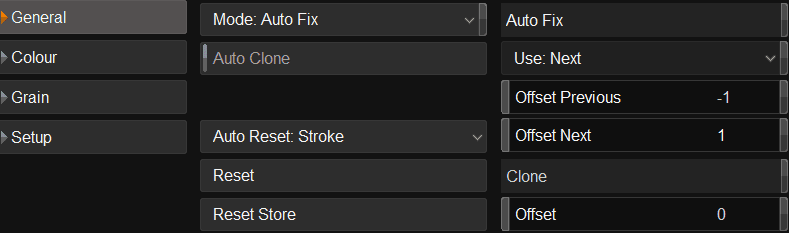
DVO Fix works by comparing the selected area to nearby frames to recreate what’s missing. It’s also useful to adjust the Auto Fix under General, which lets you choose the best reference frame for the tool — you can set it to look at the Next or Previous frame, and even how many frames ahead or behind to use as a reference.
That’s it for this step. See you in the next one,
C.
Here are the link to the tutorial I mentioned, and the official user guides for DVO Dry Clean and DVO Fix.